Setting Up Karaoke (KTV) Like an Actual Karaoke Place at Home Using JetKTV
This post is recreated from the original at https://blog.henrypoon.com/blog/2012/01/02/setting-up-karaoke-ktv-like-an-actual-karaoke-place-at-home-using-jetktv/
As many people are aware, Karaoke is popular among Asian people. Generally, people go to a Karaoke establishment to enjoy it, but it can also be done at home. Current methods involve juggling a bunch of VCDs, DVDs, or even LDs to get the wanted song. Karaoke establishments have all set up systems for people to use a computer to choose a song from a database (by artist, name, gender, etc.) that will be played on the TV. This set up can be replicated at home.
This guide presents how to mimic the system used in professional karaoke establishments at home. The software this system uses revolves around a Taiwanese program called JetKTV. Much of the content from this guide was drawn from Chinese language websites discussing the usage of this program. There is little literature on this subject in English, so this guide presents basically an English version of the reference sites plus a few added notes.
The program used is in Chinese, so people who are not fluent in Chinese may have a hard time navigating through the software. Those who are brave enough to continue or have a basic knowledge of Chinese with better English fluency may find it helpful to see English instructions. The Chinese sites on this subject are also written for older versions, and the setup procedure for those older versions are slightly different.
Proposed Setup
The proposed setup of all the hardware (TVs, amps, computer, etc.) is shown in the diagram below.
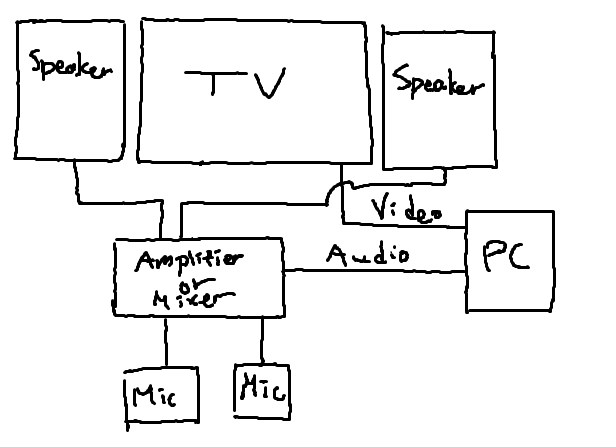
The computer will play the chosen Karaoke videos and transmit the video signal to the TV (via extended display like in a dual monitor setup). The computer’s audio will go to an amplifier or a mixer, which is then transmitted to a set of speakers. Microphones are plugged into the amplifier/mixer as well so that the speakers can also play the sound picked up by the microphones. Depending on the hardware, the cables could be different (some TVs may not have HD output etc.). The computer is the source of all the signals transmitted to the other devices and must be set up with the Karaoke software.
Setting up JetKTV2010
The PC will use the following software:
- JetKTV2010 (link) (Note: This link may no longer be available as JetKTV appears to be defunct as of 2022)
- SongMgr (optional - not helpful on English language PCs - more on that topic later)
It is helpful to set up the software using a dual monitor setup. That way, it is easier to test without having to go and plug the computer to the TV each time.
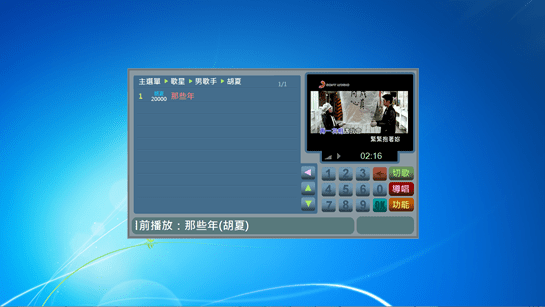
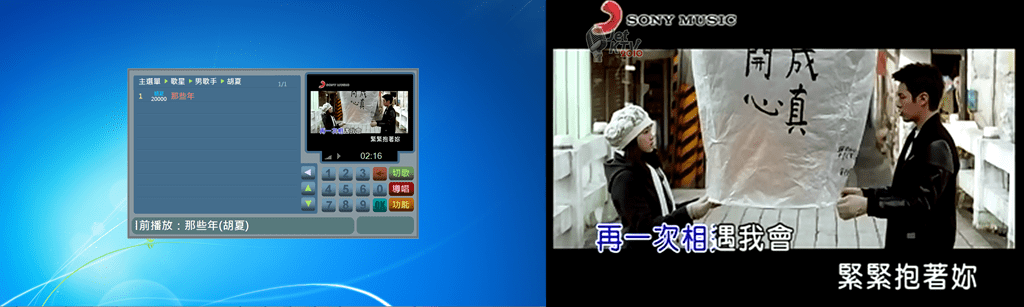
Unzip the contents of the JetKTV2010 program in a folder and open JetKTV2010.exe. The GUI buttons are for searching through the database (by looking for the artist, song name, etc.) to find the wanted song. Once a song is selected, it will be added to the list of songs to play just like the software at actual Karaoke establishments. The video will play in full screen on one monitor and the song picker GUI will stay on another monitor. To close the program, click on the top left corner of the GUI (hidden button).
Some of the software features in addition to searching and adding songs:
- Skipping songs
- Fast forwarding, pausing, etc.
- Switching from one audio channel to both audio channels (alternating between vocal on/off)
This program reads from a database that contains the song names, artists, language, etc. Therefore, it does not come with songs. Songs must be downloaded separately and added on. These can come from existing DVDs or YouTube. The next section will explain how to populate the database.
Populating the Database
The SongMgr program mentioned above can add/remove contents from the database, but there are problems with it when using it on English language PCs due to problems in encoding some of the Chinese characters. Even Microsoft AppLocale fails to rectify the problems. The solution is to use Microsoft Access to open up the database file directly and make changes.
Adding one song can seem like a lengthy process at the first try, but it will get easier as one becomes more familiar with the system.
Inserting A New Song
To insert a new song, one must navigate to the table where the songs are stored and then add an entry to it.
- Open Song.mdb in the JetKTV program directory
- When prompted for a password, input “tmwcmgumbonqd” without quotes
- Navigate to the table Tbl_Song. This is the table that records all the song entries.
Below is an explanation of each column:
- Song_ID: numerical identifier for each song (the program lists them as 5-digit numbers starting at 10000)
- Song_Title: song title
- Song_Singer: each singer has a unique number associated with them (see next section)
- Song_Singer (2nd one): the name of the artist in text
- Song_Word: number of characters in the song name
- Song_Type: a number representing a language (Mandarin, Taiwanese, Cantonese, Hakka Chinese, English, Japanese, Movies, Cartoons, Other - in that order starting from 1)
- Song_Volume: song volume, but not sure what units they are in. Default value is 70.
- Song_Channel: the audio channel that does not have the vocal track (1-Left, 2-Right, 3-Both)
- Song_FileName: filename of the video without the directory
- Song_Path: the directory to the file (could use absolute pathing only, but unsure of whether relative paths work)
- Song_Create: the time that the song was added in
- Song_Count: the play count of a song
- Song_Juyin: the Zhuyin characters representing the song title
- Song_Stroke: number of strokes in the first character of the song name
Some of the columns can be left out, but that means that it will not be possible to find a particular song using the omitted information. For example, Song_Juyin can be left out for those who do not use the Zhuyin system, and that feature won’t be used for song searching anyway.
To add a song, fill out the following information at the minimum on one row:
- Song_ID (must be a unique number and should have five digits)
- Song_Title
- Song_Singer
- Song_Volume (70 is the default)
- Song_Channel
- Song_FileName
- Song_Path
For the Song_Singer information, refer to the next section.
Inserting A New Artist
Artist information is stored on a different table called Tbl_Singer
- Open the table called Tbl_Singer
- Fill out an entire row to add a new singer (see below for the reference for each information column)
Below is an explanation of each column:
- Singer_ID: unique identifier for each singer (this is the unique ID that is to put inserted in the Song_Singer column in Tbl_Song)
- Singer_Sex: singer gender (0-Female, 1-Male, 2-Group/Band)
- Singer_Name: artist name in text
- Singer_Juyin: the Zhuyin characters representing the artist name
- Singer_Stroke: number of strokes in the first character of the artist’s name
Testing
Once a song or two has been entered into the database, one can test it by opening up the JetKTV program and trying to pick a song. It is working when one screen shows the video playing and another screen showing the JetKTV GUI.
One can also try clicking the button labeled “導唱” to test if the audio channels are set up properly (toggling it turns on and off the vocals).
The next step would be to plug in the computer with all the television components and then trying it again. Once everything works, the system is ready.
References
All reference sites are in Chinese:
- 動手打造窮人 KTV - http://www.jetktv.ktvdiy.com/ (Update 2022 October: JetKTV seems to be defunct)
- [影音相關] JetKTV 輕鬆打造免費 KTV 點唱機 (進階設定篇) - http://www.soft4fun.net/video-related/
- 峰網誌 JetKTV-DIY電腦點歌機..軟體篇 - http://www.wretch.cc/blog/Linpy/4853370